
import {
    LiveboardEmbed,
    AuthType,
    init,
    prefetch,
    EmbedEvent
}
from '@thoughtspot/visual-embed-sdk';Embed a Liveboard
Table of Contents
This page explains how to embed a ThoughtSpot Liveboard in your web page, portal, or application.
A ThoughtSpot Liveboard is an interactive dashboard that presents a collection of visualizations pinned by a user.
Import the LiveboardEmbed package🔗
Import the LiveboardEmbed SDK library to your application environment:
npm
ES6
<script type = 'module'>
    import {
        LiveboardEmbed,
        AuthType,
        init,
        prefetch
    }
from 'https://cdn.jsdelivr.net/npm/@thoughtspot/visual-embed-sdk/dist/tsembed.es.js';
Initialize the SDK🔗
Initialize the SDK and define authentication attributes.
Create an instance of the LiveboardEmbed class🔗
const liveboardEmbed = new LiveboardEmbed(document.getElementById('ts-embed'), {
    frameParams: {
        width: '100%',
        height: '100%',
    },
    liveboardId: '<%=liveboardGUID%>',
});
For more information about the Liveboard embed object, classes, methods, interface properties, and enumeration members, see the following pages:
Customize Liveboard view🔗
The LiveboardEmbed component includes the LiveboardViewConfig object. This object provides various attributes and properties to customize the look and feel of the Liveboard page, control the visibility of menu actions and features, and manage interactions between the host and embedded app.
The most common customization is controlling the visibility of menu items in the embedded view by configuring the disabledActions, hiddenActions, and visibleActions properties with an array of Action IDs. For information about the other frequently used properties, see common customization options.
Register, handle, and trigger events🔗
Register event listeners.
liveboardEmbed.on(EmbedEvent.init, showLoader)
liveboardEmbed.on(EmbedEvent.load, hideLoader)
For more information about events, see the following pages:
Render the embedded Liveboard🔗
Render the embedded Liveboard.
liveboardEmbed.render();Verify the embedded object🔗
-
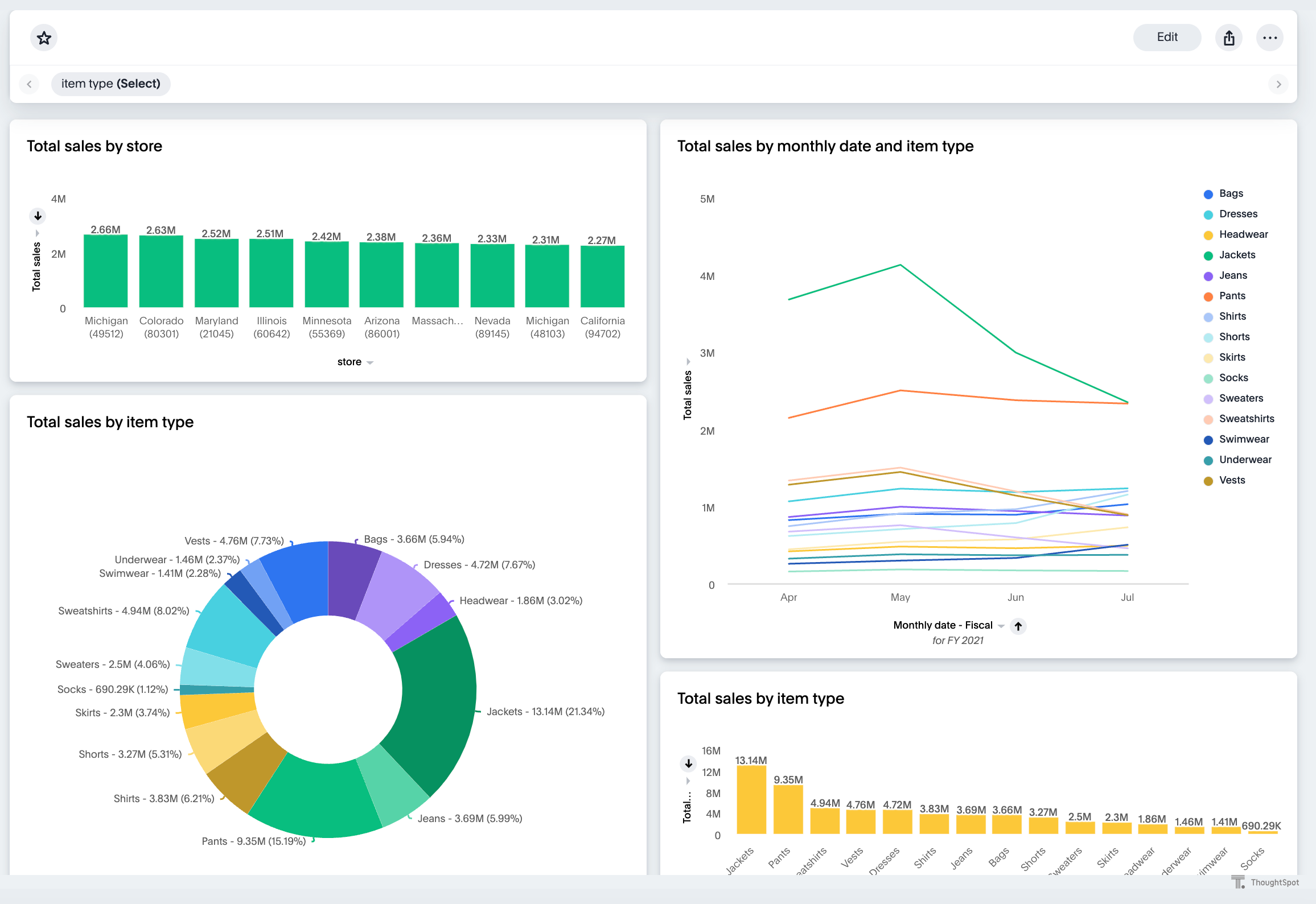
Load the embedded object in your app. If the embedding is successful, you see a Liveboard page with visualizations.
-
Explore the charts and tables, and verify that objects render and show the desired data.
Common customization options🔗
The LiveboardViewConfig object includes several properties and attributes that allow fine-grained control of the embedded experience. You can specify settings that enable or disable a specific feature, control visible or disabled menu elements and actions, set tabs and layout preferences, manage filters, hide the header, and more.
The customization options are grouped into the following pages:
| Page | Customization impact |
|---|---|
Header visibility and compact header, tabs, visible tabs and visualizations, tile gutter, Note tiles, responsive breakpoints and 12-column layout, and grouping and styling. | |
Filter chip visibility, masked filter chips, filters at load time, contextual filtering at the Liveboard, tab, and group levels, and updating filters with host events. | |
Browser data cache and refresh, PDF, XLSX, and CSV downloads, download action IDs and host events, and scheduled exports. |
|
Important
|
If a Liveboard is saved with Groups in the ThoughtSpot interface, you must set |
Additional resources🔗
-
For information about runtime overrides, see Runtime filters and Runtime Parameter overrides.
-
For code examples, see Developer examples.
-
For more information about the SDK APIs and attributes, see Visual Embed SDK Reference Guide.